Hello and welcome back to the last of a three part series on integrating MDM with ECC with XI (sorry for the onslaught of acronyms). If you missed out on the first two you can find them here: Part I, Part II. In this one we will focus on testing out your scenario, and how to troubleshoot (where to look) in both MDM and XI. You may have already noticed that in the previous two parts of this series I used a sample scenario dealing with material master data and the MATMAS05 IDoc structure. Ultimately we want to generate a new material in ECC based on the creation of a material in MDM.So lets go ahead and get started. First we'll start with the syndication process in MDM, and making sure our settings are correct.
1. MDM
First we'll start with the syndication process in MDM, and making sure our settings are correct.
1.1 Check Configuration
1.1.1 Client-Side Settings
· Open the MDM Console
· Navigate to Ports in the repository to which your map is located.

· Verify that you have selected the correct map (built in Part I)
· Select your processing mode as Automatic

· Open the MDM Syndicator (Select the repository and press OK)
· Select File->Open
· Select the remote system representing ECC
· Select your map and press OK
· Select the Map Properties tab
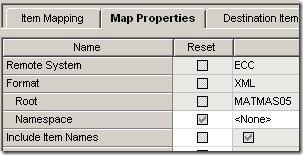
· Check Suppress Unchanged Records so we automatically update only changed records.
· Close and save your map

1.1.2 Server-Side Settings
· Open your mdss.ini file on the MDM server
· Verify that Auto Syndication Task Enabled=True
· For testing purposes, change the Auto Syndication Task Delay (seconds) to something rather small, such as 30 or less. This way you don't have to wait a long time for syndication when testing.

· Verify that the service is started.
· UNIX systems: ps -ef | grep mdss
· WINDOWS systems: open services, and look for entry regarding syndication server
· If service is not running, run command ./mdss (UNIX) or rightclick->start service (WINDOWS)

1.2 Important Locations
I'd like to go over some of the important locations (directories) on your server that will come in handy when troubleshooting and testing. One of the trickiest parts of working with MDM is figuring out where things go and where to look. Because it's so different from the SAP software that we are all used to, navigating the system is not as easy as running a transaction code. Also, MDM reacts to certain situations differently that you may expect, so it's important to know where to look when things aren't working properly. I'm working with MDM installed on HP-UX, however I will try to address each topic as it would appear in Windows to the best of my knowledge.
1.2.1 Home
Log onto your MDM server and navigate to the home directory for the MDM application server. On the server I am working with (sandbox) it happens to be located on the opt filesystem, and the path looks like /opt/MDM. In this directory take note of several important directories:
/opt/MDM/Distributions
/opt/MDM/Logs
/opt/MDM/bin
The Distributions folder is very important because this is where the port directories get created. When you create a port in the MDM Console for a particular repository, it creates a subset of folders in the Distributions directory based on which repository the port was created in, and whether the port is inbound or outbound. For example, in our particular scenario we may navigate to the path/opt/MDM/Distributions/install_specific_directory/Material/Outbound/. Here we will notice a folder entitled ECC which (if you followed the fist part of this series) corresponds to the port that we created earlier. This directory was created as soon as the port was created in the MDM Console. We will focus more on the contents of our port directory shortly.
The Logs folder contains several important log files, however most of them will not apply to our particular scenario, because the logs that we will want to look at are going to be specific to the syndication process, and are located within the port directory. Neverless, I thought it was important to mention that in certain troubleshooting scenarios, don't forget that these log files also exist.
The Bin directory is critical because that is where the files that start the app servers are located. The programs mds, mdss, and mdis are critical files.
1.2.2 Port
Your port directory is going to have the following format:
/MDM_HOME_DIRECTORY/Distributions/MDM_NAME/REPOSITORY/Outbound/REMOTE_SYSTEM/CODE/
For example the we created looks like this:
/opt/MDM/SID.WORLD_ORCL/Material/Outbound/ECC/Out_ECC/
Here you should see the following directories:
/Archive
/Exception
/Log
/Ready
/Status
The Archive directory is not as important during the process of syndication as it is with the process of importing data into MDM. This directory contains the processed data. For example, if you were to import an XML document containing material master data, a message would get placed in the archive directory for reference later if you ever needed to check.
The Exception directory is very important because often times when an error occurs you can find a file has been generated in the Exceptions folder that should look similar to that file that either the import server or the syndication server are attempting to import or syndicate. In other words, lets say you were attempting to import an XML document that contained material master data, but the map that was built in MDM has a logic error, the document will instead get passed to the Exceptions folder and the status of the port will be changed in the MDM Console program to "blocked".
The Log directory is important for the obvious reason. Logs are created each time the syndication server runs. So if your interval is 30 seconds, then a log will be generated in this folder every 30 seconds. It will give you the details of the syndication process which ultimately can be critical in the troubleshooting process.
The Ready folder is the most important folder in our scenario. When the Syndication Server polls during it's interval and performs the syndication, the generated XML message will appear in the Ready folder. So in the case of our scenario, we are going to have material master data exported to this directory and ultimately Exchange Infraustructure is going to pick up the data and process it to ECC.
The Status directory contains XML files that hold certain information pertaining to the import / export of data. This information includes processing codes and timestamps.
1.3 Testing
Now are going to test out our scenario and make sure that the export of materials works correctly. First things first, we need to create a new material in the MDM Data Manager. Make sure that your MDM syndication server is turned on! Remember on UNIX we can start it by running ./mdss in the /bindirectory, and on Windows by simply starting the service.
1.3.1 MDM Data Manager
· Start MDM Data Manager
· Connect to Material repository.

· Add a new material by "right-click".

· Fill in required fields to satisfy the map built in Part I.

· Verify the new product is saved by clicking elsewhere in the Records screen, and then back to the new Material.

1.3.2 Check Syndication
We are now going go verify that the syndication process is taking place as it should based on the settings in your mdss.ini file. If you have set the MDM Syndication Server to perform the syndication process every 30 seconds, as I set it for testing purposes, then by the time you log into your server the syndication should have already occured. Lets check by logging onto the server and navigating to the Ready folder in our Port directory.
/opt/MDMSID.WORLD_ORCL/Material/Outbound/ECC/Out_ECC/
If all went as planned your Ready folder may look something like this:

Those files are XML files that contain the data for each material in your repository that has changed. In this case the only materials in my repository are the two that I just added, so the MDM Syndication Server updated the Ready folder with both new materials. Now they are waiting for XI to pick them up and process them. Before we move over to the XI part lets take a look at one of these files and verify that the data in them is correct. Keep in mind that if you have already configured XI to pick up the files from this directory and process them, it's possible you won't see them here because they have already been deleted by XI (based on the settings in your communication channel).
1.3.3 Verify Data
Lets go ahead and open one of these files. I copied the file from the server to my local Windows running computer to examine the file, but of course you can read the file straight from the server if you prefer. If your mapping was done similar to mine, your file should look like a MATMAS05 IDoc in XML structure. This is to make it easier for XI to process since we can export in this format from MDM without much difficulty.


 @SAPMDMgroup


